How to set up and use EDF’s Smart Charging bolt-on with your Indra charger, including troubleshooting and FAQs.
In this article
How to set up
How to charge
How to disconnect
FAQs
Troubleshooting
How to set up EDF Smart Charging bolt-on
What you'll need
Before you start, make sure you have:
- The Indra charger online (i.e. connected to the internet)
- An EDF tariff that supports Smart Charging (for example GoElectric) and you have signed up for the Smart Charging bolt-on
- The EDF app installed and you’re signed in
- Your EV plugged in at home (EDF recommends plugging in before you begin setup)
✅ Step 1: Start setup in the EDF app
Open the EDF app and find the Smart Charging card.
Tap Set up Smart Charging to begin.
✅ Step 2: See what’s involved, then start
You’ll see a quick overview of the setup journey.
Tap Start setup.
✅ Step 3: Add your details
🚗 EDF will ask for your EV make and model.
If you have more than one EV, we recommend adding the one you use most often.
When both are selected, tap Next: Your charger info.
✅ Step 4: Select your Indra charger
⚡Now you'll add your charger make and model
Select 'Indra' as your charger make, then choose your model (e.g. Smart Lux / Smart Pro).
Tap Next: Confirm your details
✅ Step 5: Confirm details and accept the terms
You’ll see a summary of your EV and charger. If anything’s wrong, you can change it here.
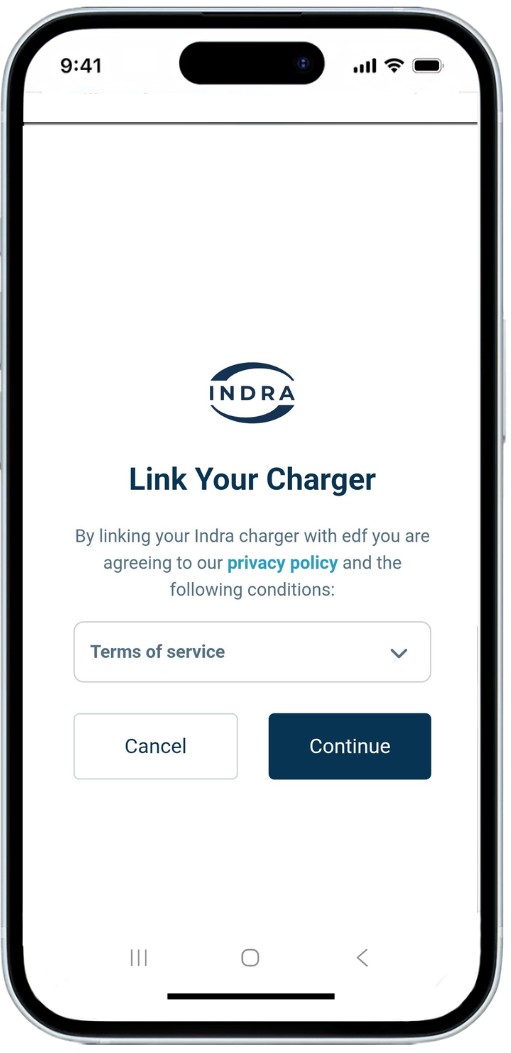
Review your EV + charger details, then accept the terms and continue.
✅ Step 6: Choose how you want to connect (if offered)
If both your electric vehicle and charger are compatible, you can choose how you’d like to connect.
- Connect your EV🚗 – a more hands-off experience, with EDF adjusting the charge added to hit your set goal when you need it
- Connect your charger⚡ –This is a bit more manual. A home charger typically can’t report your car’s battery level, so Smart Charging can’t see exactly how full your EV is. So instead, EDF tops up the same amount based on the preferences you choose, so you may need to keep those updated if your routine changes
If your EV is not compatible, then you will be offered the option of connecting via your Indra charger.
✅ Step 7: Connect to your Indra (charger route)
If you choose Connect your charger, EDF will guide you through connecting to your Indra account.
Tap Login to Indra. Before you do, EDF advises:
- make sure your charger is connected to Wi-Fi and installed at home, and
- turn off any charging schedules set in your charger’s app.
At this point a connection will be made between EDF's and Indra’s systems.
When prompted, please enter the e-mail address associated with your Indra account, even if this is different from your EDF one.
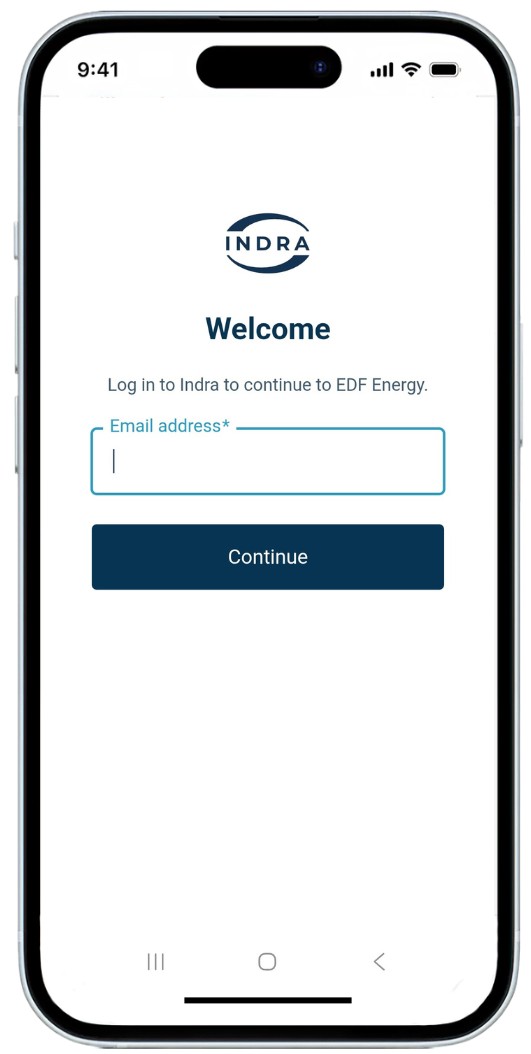
You will be asked to verify your identify by entering a 6-digit, one time code which will have been sent to your e-mail address.

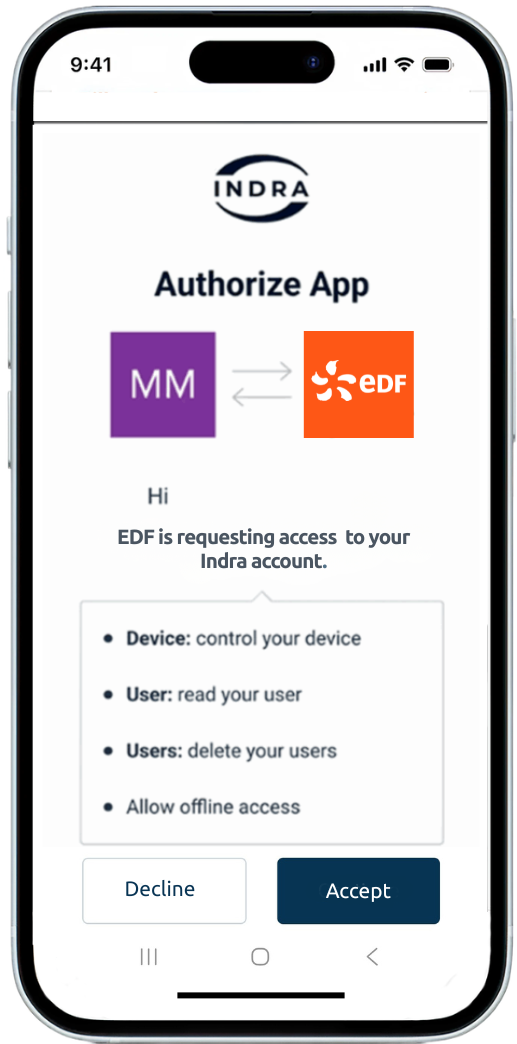
You will then be asked for your permission to share specific data and control with EDF to enable you to access their services.
Once you tap Accept, you'll then return to the EDF app.
✅ Step 8: Confirm you're connected and move on to scheduling
Once the connection is complete, EDF will show confirmation and move you to scheduling. Tap Continue.
✅ Step 9: Set up your Smart Charging schedule
EDF will now help you calculate your “daily top-up amount” (the amount it aims to add each time you plug in) by asking a few quick questions.
Tap Let's go!
You'll then be asked 3 questions;
- What time you usually leave home with your EV? (This was previously 'set your ready-by time').
- How much charge you want by the time you leave?
- Your typical battery level when you plug in?
EDF then uses your answers to calculate your daily top-up amount.
✅ Step 10: You're all set
When setup is complete, EDF will show your schedule summary.
Back on your EDF home screen, you’ll be able to see and manage your Smart Charging settings
Important: To avoid clashes, switch off any existing charging schedules you’ve set elsewhere (for example, in your car or another app) so Smart Charging can control charging as intended.
How to charge using EDF Smart Charging
This guide is about how to use EDF's Smart Charging Bolt on to charge your car.
How to charge using EDF Smart Charging ⚡
Once you’re set up, day-to-day use is simple:
- Plug in at home
- EDF creates a schedule based on your preferences
- Charging runs automatically within that schedule
Tip: You’ll usually get the best results by plugging in overnight and plugging in regularly, so EDF can apply your Smart Charging schedule consistently.
How to change your schedule 🗓️
You can typically adjust settings in the EDF app, such as:
- Daily top-up amount 🔋
- Ready-by time ⏰
Look for options like “Change daily top-up” and “Change ready-by time”, or “Manage Smart Charging”.
Solar Charging 🌞
If you have solar panels and you are integrated via the charger, you can use these alongside your EDF Smart Charging bolt-on integrated charging. This is still controlled in your Indra App via the ‘use solar’ function.
If enabled, anytime you are plugged in and EDF are not charging your car from the grid, excess energy from your Solar will be matched into your car. You can enable or disable this at any time via the Indra app.
Please note that 'use solar' only works with a charger integration. If you have a vehicle integration the charger can't tell what energy came from solar and what came from the grid; your car is in charge of when to charge so will not match excess solar when it's available.
Boost /Bump charging ⚡
Boost charging remains available to you from the Boost button on the front of your Indra charger. They can also boost via the Indra App.
Please note that using a boost will charge your car immediately at the highest power possible at the time. As this is not an EDF optimised charge, it will not qualify for the low rate per kWh that EDF Smart Charging provides and will cost your standard rate per kWh in energy.
How to disconnect EDF Smart Charging ⛓️💥
The Smart Charging bolt-on works with your Indra charger by your Indra and EDF accounts being linked. This gives EDF the ability to then optimise your charging, based on the preferences in your EDF App.
If you no longer wish to have EDF Smart Charging bolt-on, you can unlink the accounts which will return charging control to your Indra app, allowing you to set charge schedules that your charger will then follow
Please refer to the instructions in the EDF app to do this.
Please note, that by unlinking your EDF and Indra accounts, the amount you pay for the energy delivered to your vehicle will change. Please check the details about how your tariff will be affected by this change before continuing.
Frequently asked questions (FAQs)
Why does my EV start charging straight away before Smart Charging schedules it? ⏰
When you plug in, your EV may begin charging briefly while EDF Smart Charging calculates your schedule. Any electricity used during this “setup” period can be charged at your standard (peak) rate if it happens outside your off-peak window.
EDF’s £5 monthly credit is described as an incentive for allowing Smart Charging to control when your vehicle charges. If you want a session-by-session breakdown of costs, EDF can check your account details and charging history.
What’s the difference between connecting Smart Charging via my EV vs via my charger? 🚗⚡
Depending on your vehicle and charger, you may be able to set up Smart Charging through your EV, through your charger, or (in some cases) you’ll be asked to choose between the two.
If you connect via your EV 🚗
This option is usually the most “set and forget”. Because the EV can share key information (like battery state), Smart Charging can work out how much energy you need and automatically schedule charging to meet your preferences — while shifting as much charging as possible into cheaper off-peak periods.
If you connect via your charger⚡
This is a bit more manual. A home charger typically can’t report your car’s battery level, so Smart Charging can’t see exactly how full your EV is. Instead, you choose a daily top-up amount (how much charge to add when you plug in). That same top-up is then used each time you plug in, unless you change it. If you want Smart Charging to repeat a newly updated top-up, you may need to unplug and reconnect your EV so the new setting is picked up.
Can I use EDF Smart Charging Bolt-On with my Indra V2H Charger? 🔄
EDF Smart Charging bolt-on is not available for bi-directional EV charging.
Can I use my Solar Energy with EDF Smart Charging? 🌞
When you enable ‘use solar’ in the Indra app, Indra will add solar charging around any optimised charging that EDF sends. As such, you will be able to benefit from a very low rate for your charging plus being able to use your own solar when it’s available.
Which app do I use once I'm using EDF Smart Charging? 📲
With EDF's Smart Charging bolt-on, it is EDF who will decide when it charges your vehicle. Scheduling functions in the Indra App will be disabled.
However, you can still use your Indra App for other functions such as "Lock charger" which prevents unauthorised users from using your charger.
What do I need to do if I’m moving home and want to keep Smart Charging? 🔑
If you’re moving home, just let EDF know your moving date and set up your new electricity supply with us at your new address.
Once your new supply is active, you will need to disconnect your EV and charger in the EDF App and sign back up to the Smart Charging bolt-on when your EV is plugged in at your new address.
How can I check that I'm on EDF Smart Charging bolt-on? ⚡️
You can check this is the case by looking in your EDF app.
Alternatively, you can check your tariff on your Indra App.
- Open the Indra App
- Go to the Schedule Page
If you are linked it will show the below screen
If EDF Smart Charging bolt-on is not showing it is possible that your charger has not been set-up correctly to use this tariff.
Troubleshooting
Smart Charging isn’t working as expected 🛠️
- Double-check you don’t have another schedule set in your EV or another app that could conflict
- Make sure your charger is online (connected to Wi-Fi / internet)
- Check your EDF Smart Charging preferences (ready-by time / daily top-up amount)
I can’t complete “Login to Indra” 🔒
- Make sure you’re using the same email address you use for your Indra account
- Check you can receive the verification code
- Close both apps and start again from the EDF setup journey